The Published Posts feature in Brand2Social gives you a centralized view of all content that has gone live across your connected social media accounts. From tracking engagement metrics to reviewing post performance, Published Posts gives you everything you need to monitor your content and refine your social media strategy.
What Are Published Posts?
Published Posts is a dedicated section in Brand2Social where you can view, manage, and analyze all content that has been successfully posted to your connected social media accounts. It brings together posts from every platform — Facebook, Instagram, LinkedIn, Twitter, YouTube, and Google My Business — into a single, unified feed so you never have to log in to each platform separately to check on your content.
How to Access Published Posts
1. Log in to your Brand2Social account.
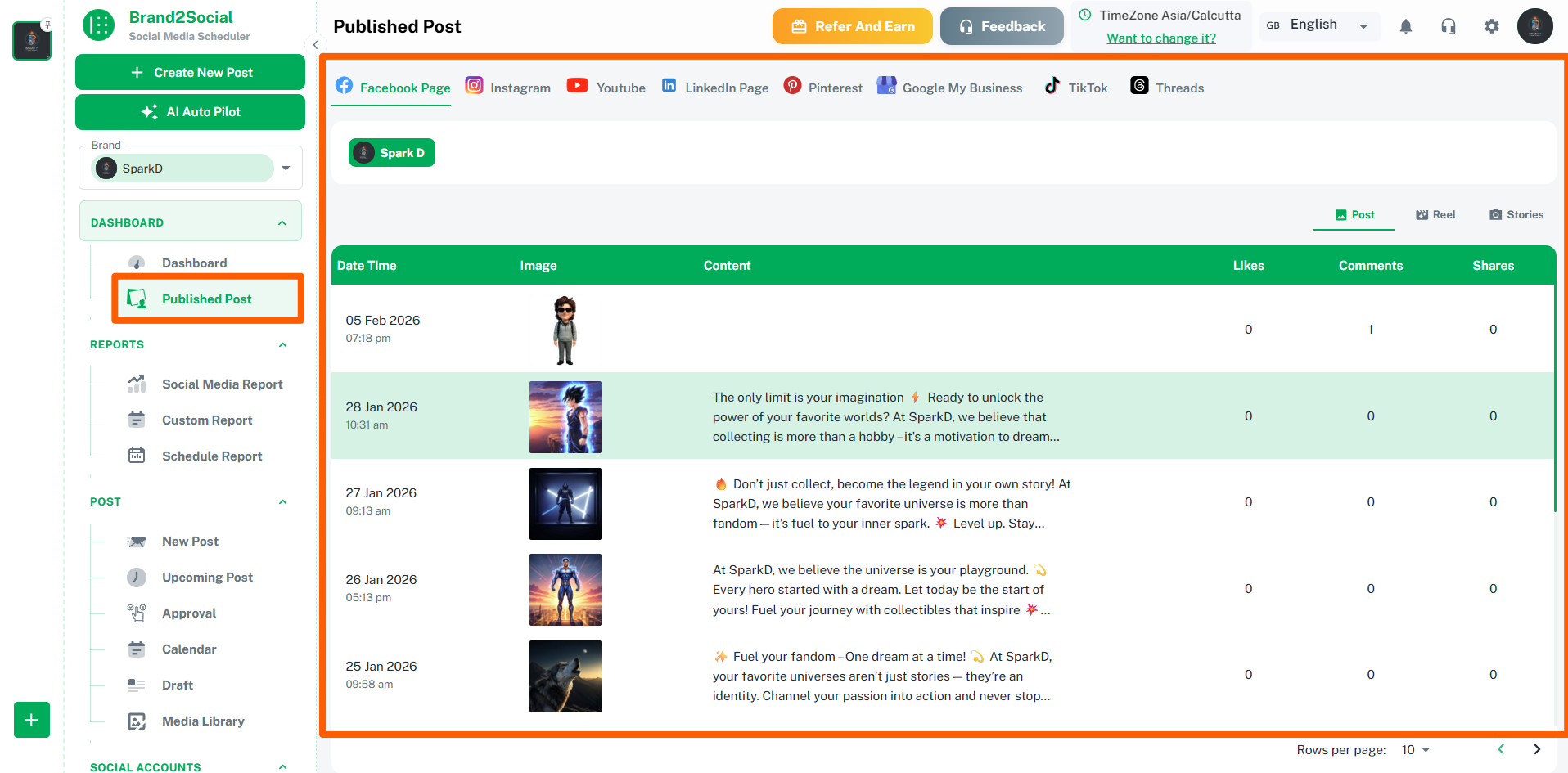
2. In the left-side navigation menu, click on Published Posts under the Social Media Monitoring section.
3. You will see a feed of all posts that have been successfully published across your connected accounts.
Filtering and Searching Published Posts
To help you find specific posts quickly, Brand2Social provides several filtering and search options.
1. Use the platform filter to narrow the feed down to posts from a specific social media platform (e.g., Instagram only, or LinkedIn only).
2. Use the account filter to view posts from a specific connected account or Page if you manage multiple accounts.
3. Use the date range picker to view posts published within a specific time period.
4. Use the search bar to find posts by keyword or content.
ℹ️ Note: Filters can be combined — for example, you can filter by platform and date range at the same time to quickly find the posts you are looking for.
Understanding Post Metrics
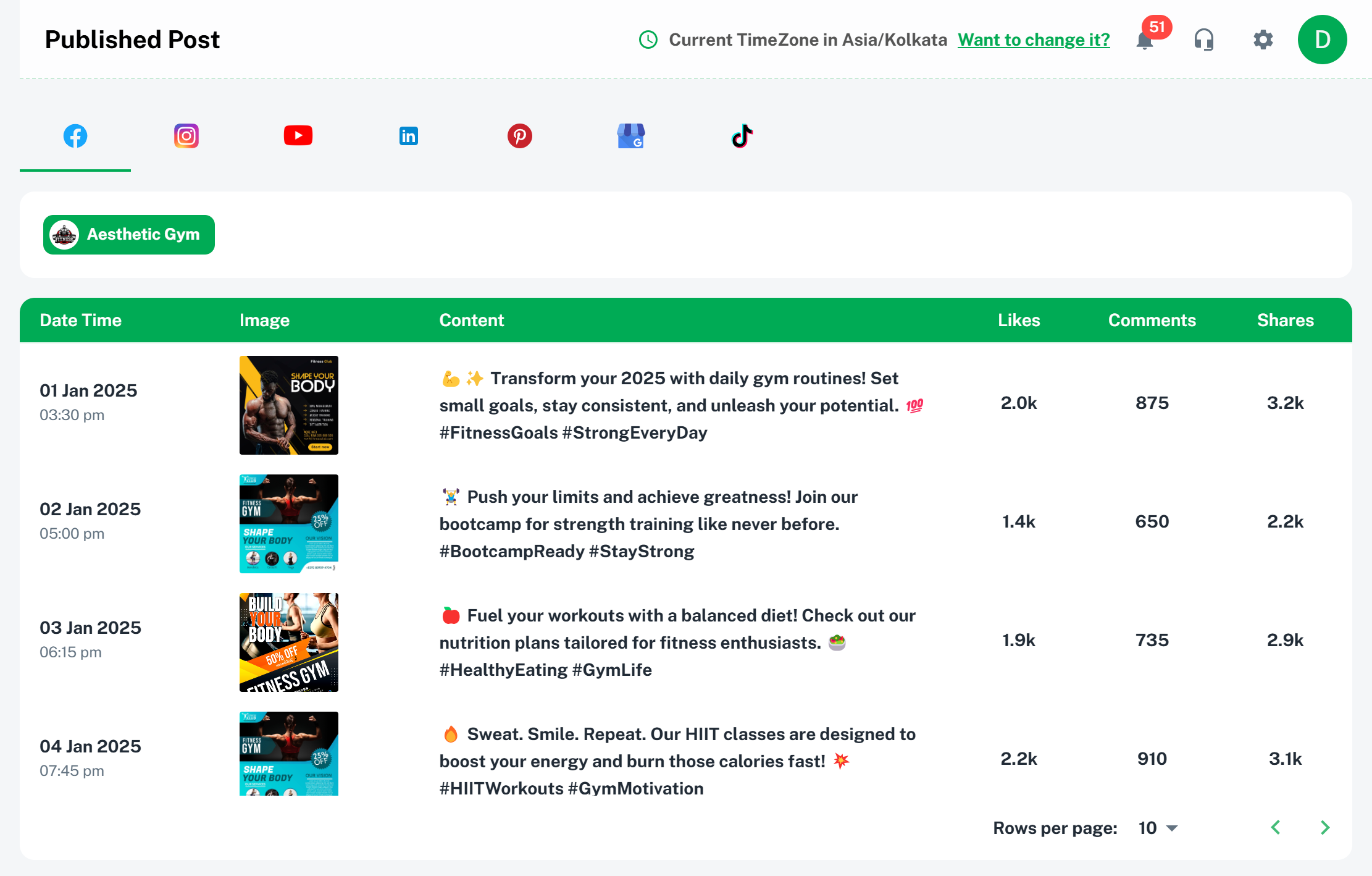
Each published post in the feed displays key engagement metrics alongside the post content, giving you an at-a-glance view of how each piece of content is performing.
The metrics shown may vary by platform, but typically include:
- Likes / Reactions — the total number of likes or reactions the post has received.
- Comments — the total number of comments left on the post.
- Shares / Retweets — the number of times the post has been shared or retweeted.
- Reach — the total number of unique accounts that saw the post.
- Impressions — the total number of times the post was displayed, including repeat views.
- Clicks — the number of times a link within the post was clicked (where applicable).
ℹ️ Note: Metrics are pulled from each platform’s API and may take a short time to update after a post goes live. Platforms such as Instagram and Facebook typically refresh metrics every few hours.
What You Can Do from Published Posts
View Post Details
Click on any post in the feed to open a detailed view showing the full post content, all available metrics, and the platform and account it was published to.
Re-use or Repurpose Content
Identify your top-performing posts and use them as inspiration or templates for future content. Brand2Social allows you to duplicate a post directly from the Published Posts view, saving you time when repurposing content across platforms.
Track Engagement Over Time
Use the date range filter to compare post performance across different time periods — for example, comparing engagement from last month to this month — to identify trends and patterns in your audience’s behavior.
Monitor Multiple Accounts at Once
If you manage multiple brands or clients, the Published Posts feed gives you a consolidated view across all accounts, making it easy to ensure every account is active and performing as expected.
Benefits of the Published Posts Feature
- Centralized Post Management — view all published posts in one place, regardless of which platform they were posted to, eliminating the need to log in to each social media account separately.
- Performance Analytics — access engagement metrics for every post, helping you assess the effectiveness of your content at a glance.
- Engagement Tracking — identify which types of content resonate most with your audience and use those insights to refine your content strategy.
- Time Saving — quickly audit your publishing history and spot any gaps or inconsistencies in your content calendar without switching between platforms.
Troubleshooting Common Issues
A post I know was published is not appearing in the feed
- Check that the social media account it was published to is still connected in Brand2Social. If the account has been disconnected or its token has expired, historical posts from that account may not load.
- Use the platform and account filters to make sure you are not unintentionally filtering out the account in question.
- Try adjusting the date range to ensure the time period covering that post is selected.
Metrics are showing as zero or are not updating
- Metrics are retrieved from each platform’s API and may take several hours to populate after a post goes live. This is expected behavior — check back later.
- If metrics remain at zero after 24 hours, try disconnecting and reconnecting the affected social account, as the API token may need to be refreshed.
I can see the post but some metrics are missing
- Not all platforms expose the same metrics through their APIs. For example, some platforms do not provide reach or impression data for all account types. The metrics displayed will always reflect the maximum available data for that platform and account type.
Access All Your Social Media Feeds in One Place with Published Posts
Watch this quick demo to understand how Published Posts works in Brand2Social.