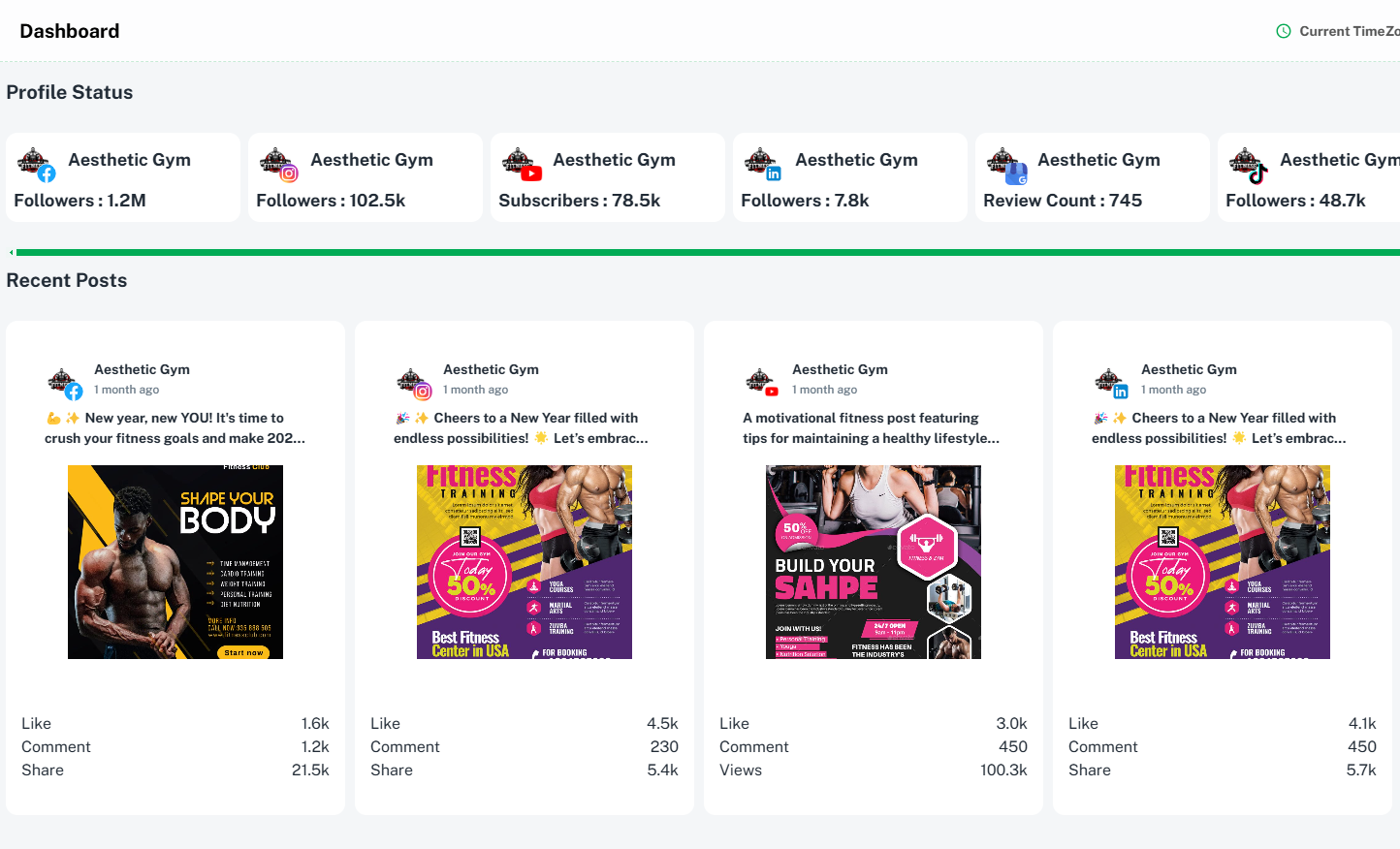
The Brand2Social Dashboard is your command center for social media management. It consolidates data from all your connected social media accounts into a single, easy-to-navigate interface — giving you a real-time snapshot of post performance, engagement metrics, scheduled content, and more, without ever having to switch between platforms.
How to Access the Dashboard
1. Log in to your Brand2Social account.
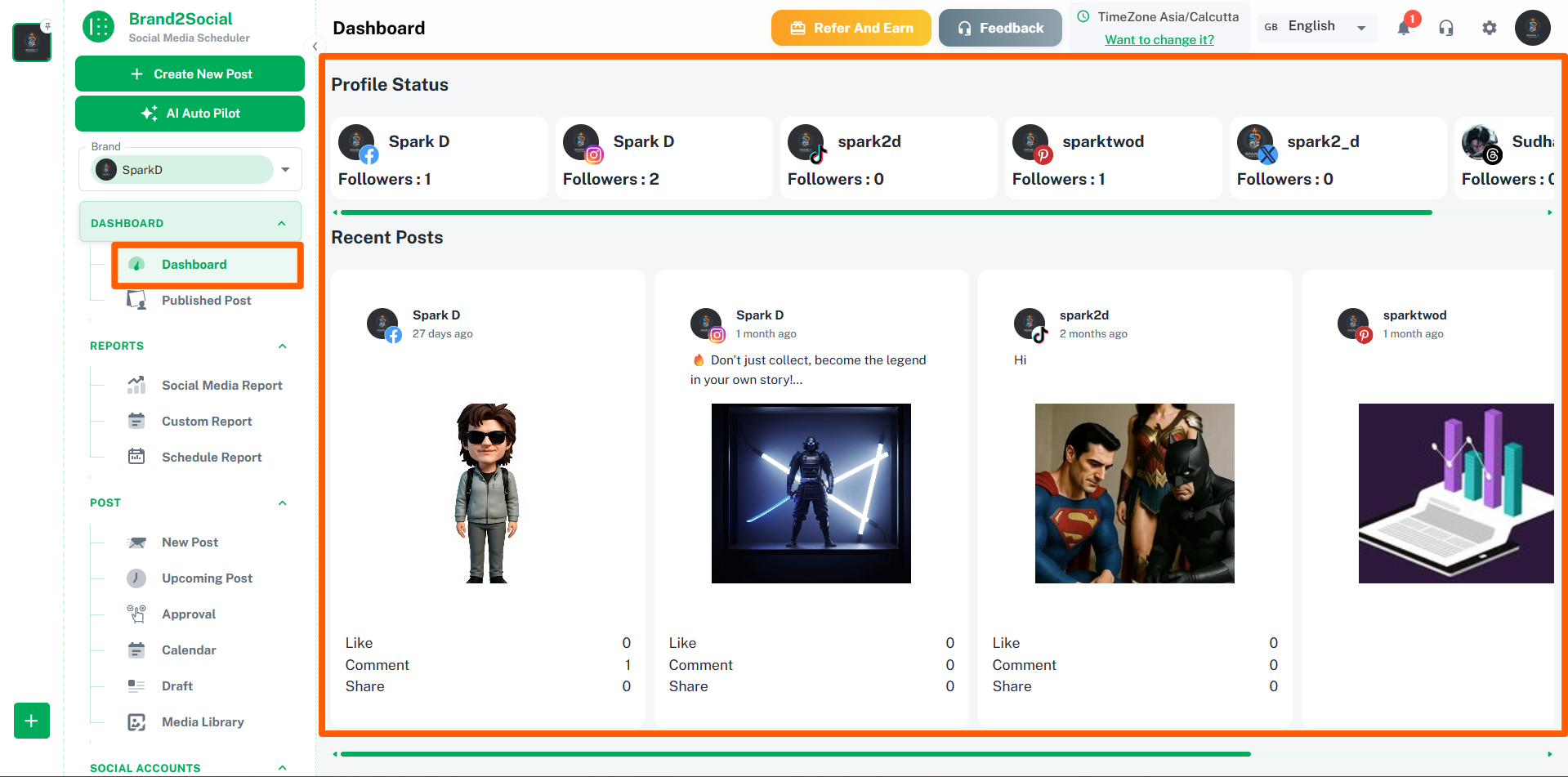
2. Click on Dashboard in the left-side navigation menu.
3. The Dashboard will load with an overview of all your connected social media accounts and their latest activity.
What You Can See on the Dashboard
Post Performance Summary
The Dashboard displays key engagement metrics across all your connected accounts at a glance, including:
- Likes / Reactions — total engagement received across platforms.
- Comments — total comments across all published posts.
- Shares / Retweets — how widely your content is being distributed.
- Reach & Impressions — how many people your content is reaching and how often it is being seen.
- Follower Growth — changes in follower count over time across connected accounts.
Scheduled and Recent Posts
View your upcoming scheduled posts and most recently published content directly from the Dashboard, so you always have visibility over what is going live and when.
Account Overview
See the connection status and a summary of activity for each of your connected social media accounts — useful for quickly spotting any accounts that may have become disconnected or have low activity.
Navigating Dashboard Templates
If you have multiple dashboard templates saved, you can navigate between them directly from the Dashboard view.
1. Use the left and right arrows to browse through your saved templates one at a time.
2. Alternatively, click the expand symbol to get a full overview of all your saved templates at once and select the one you want to view.
ℹ️ Note: Dashboard templates allow you to save different metric and account configurations so you can quickly switch between views — for example, a view focused on one client’s accounts versus another.
Filtering the Dashboard
You can customize what the Dashboard displays to focus on the data most relevant to you.
1. Use the account filter to display metrics for a specific connected account or Page.
2. Use the platform filter to narrow the view to a single social media platform.
3. Use the date range picker to view performance data for a specific time period.
ℹ️ Note: Filters can be combined to create a highly specific view — for example, Instagram performance for a particular account over the last 30 days.
Benefits of the Dashboard
- Centralized Monitoring — all your social media data in one place, eliminating the need to log in to each platform separately.
- Real-Time Insights — access up-to-date data on post performance, engagement, and follower growth to make informed decisions quickly.
- Performance Tracking — measure the effectiveness of your content with detailed metrics across every connected account and platform.
- Content Management — view scheduled posts, drafts, and published content from the same interface, keeping your content calendar always in view.
- Efficiency — with all tools and data consolidated in one interface, your team can spend less time managing platforms and more time creating and optimizing content.
Troubleshooting Common Issues
The Dashboard is not showing data for one of my accounts
- Check that the account is still connected in Brand2Social. Go to Integrations and verify the account shows a green connected status.
- If the account’s token has expired, re-authenticate it from the Integrations page and return to the Dashboard.
Metrics on the Dashboard appear as zero or are outdated
- Dashboard metrics are pulled from each platform’s API and may take a few hours to refresh. This is expected behavior for newly published posts.
- If metrics remain stale after 24 hours, try refreshing the page or reconnecting the affected account.
I cannot find a saved Dashboard template
- Use the expand symbol on the Dashboard to view all saved templates in a grid overview — it may have been pushed out of view if you have many templates saved.
- If the template appears to be missing entirely, it may have been deleted. You can recreate it by configuring your preferred filters and saving a new template.
See Our Dashboard in Action
Watch this quick demo to understand how the Brand2Social Dashboard works.